Learn how to host a static website on Amazon S3. A simple, step-by-step guide to deploying your HTML, CSS, and images for portfolios or landing pages.
Loading article...
Learn how to host a static website on Amazon S3. A simple, step-by-step guide to deploying your HTML, CSS, and images for portfolios or landing pages.
Search for a command to run...
Search for a command to run...
Hosting a website doesn’t always require expensive servers or complex configurations. If you’re working with just HTML, CSS, and images, Amazon S3 offers a simple, affordable solution.
In this guide, I’ll show you how to host a static website using Amazon S3, perfect for portfolios, landing pages, or learning projects.
Amazon S3 (Simple Storage Service) is a storage service by AWS (Amazon Web Services). You can upload files and access them over the internet.
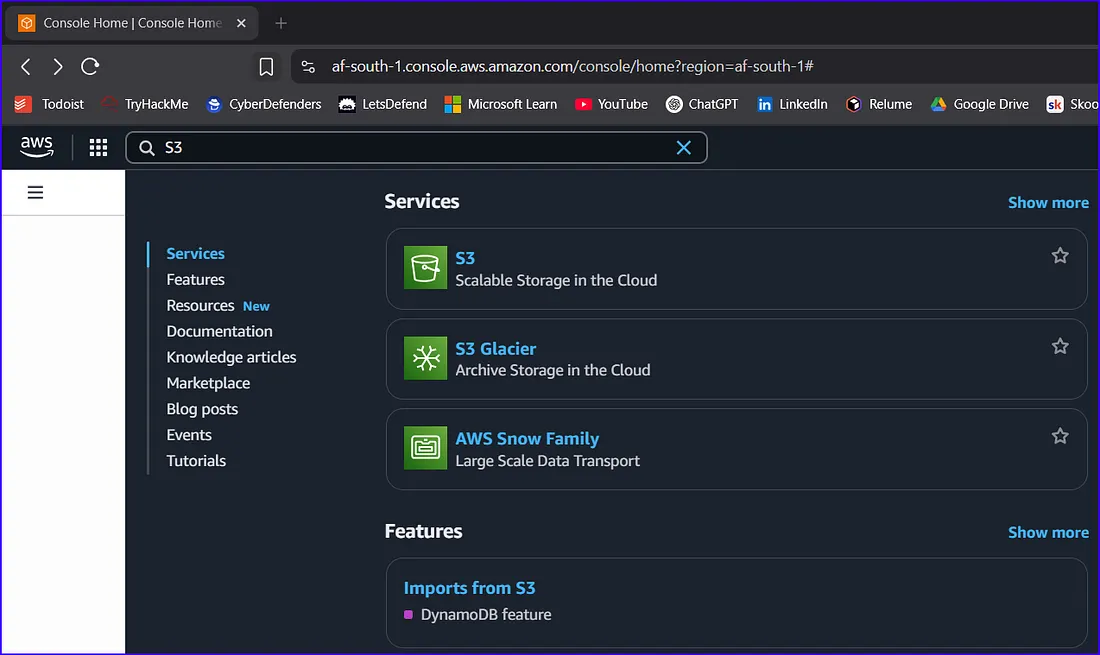
Go to aws.amazon.com and sign in. Search for S3 in the top bar, and click it.
mystaticwebsite-abdi (bucket names must be globally unique).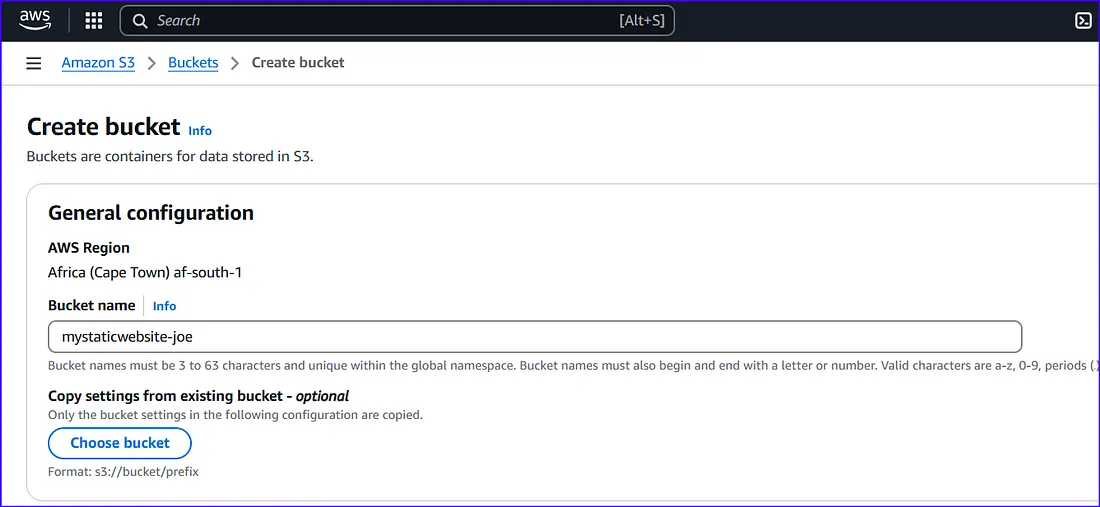
index.html as the index document.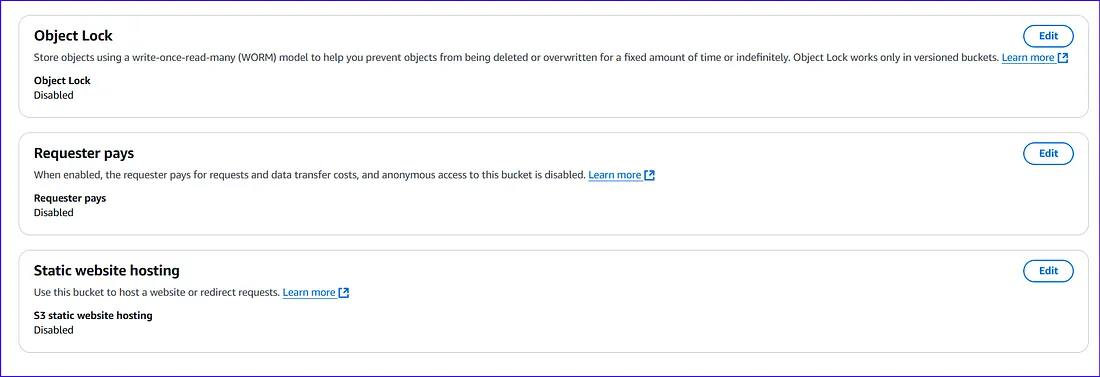
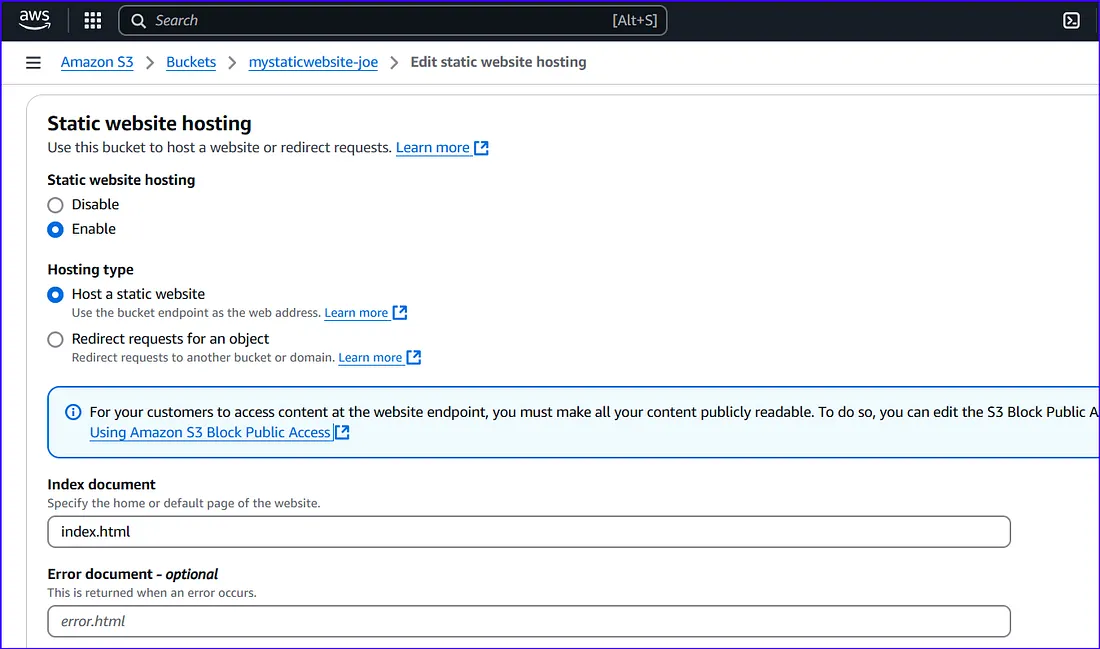
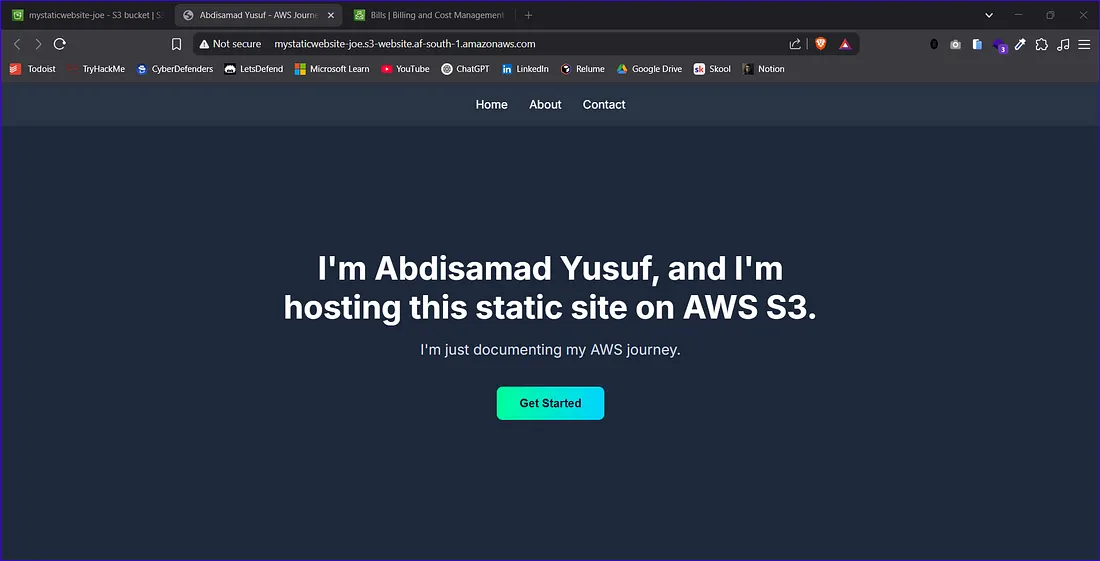
After saving, scroll down again — you’ll see a Website endpoint URL. That’s your site link!
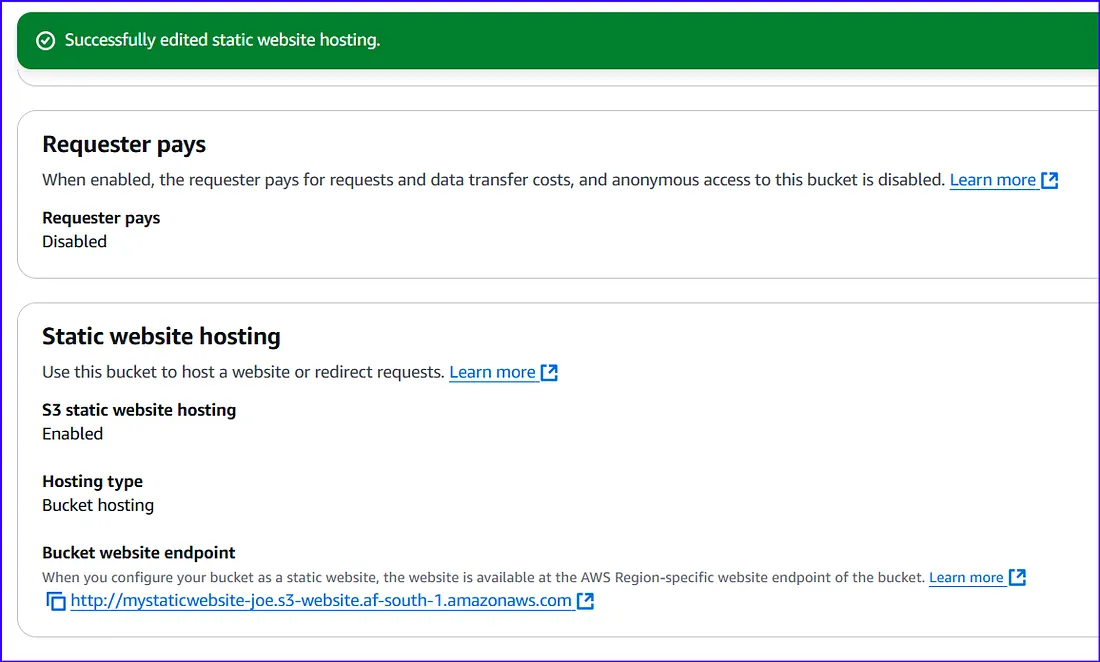
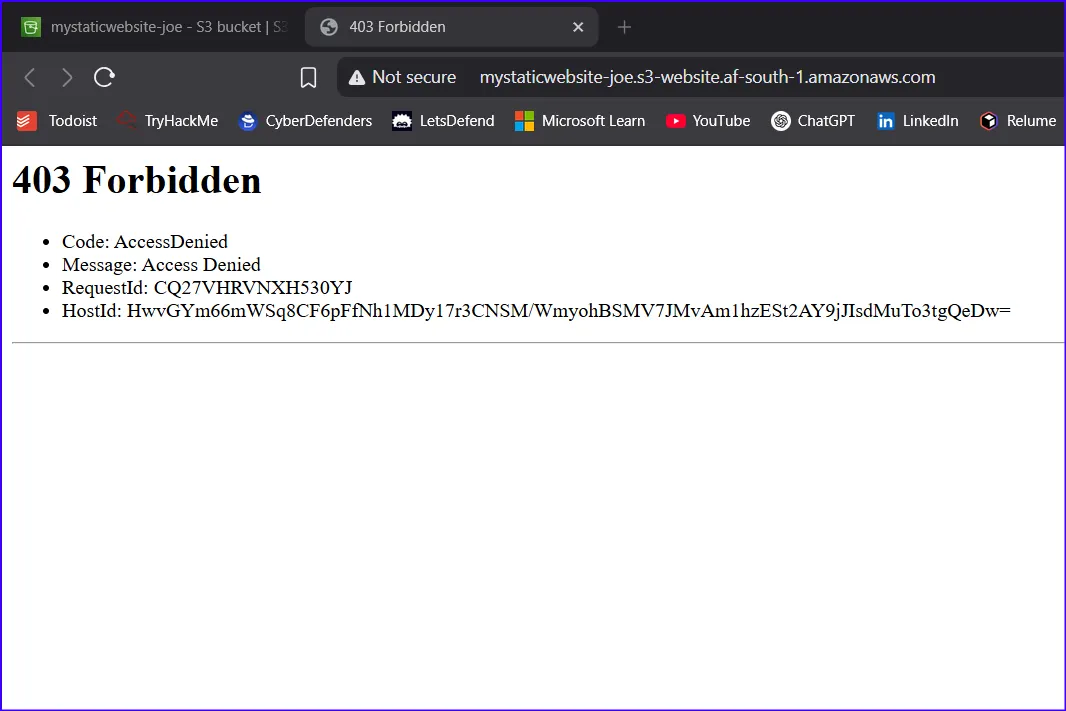
If you visit the endpoint now, you’ll see a 403 Forbidden error. That’s because S3 blocks public access by default.
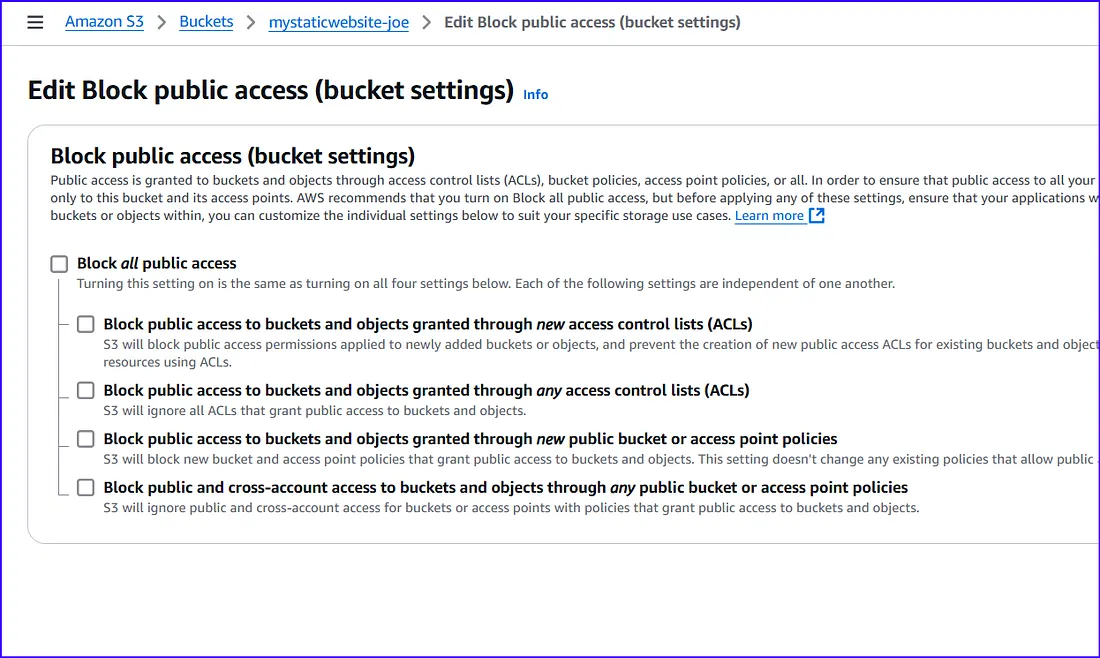
To allow the internet to read your files:
mystaticwebsite-joe with your actual bucket name:{
"Version": "2012-10-17",
"Statement": [
{
"Sid": "PublicReadGetObject",
"Effect": "Allow",
"Principal": "*",
"Action": ["s3:GetObject"],
"Resource": ["arn:aws:s3:::mystaticwebsite-joe/*"]
}
]
}index.html along with any other CSS, images, or assets your site needs.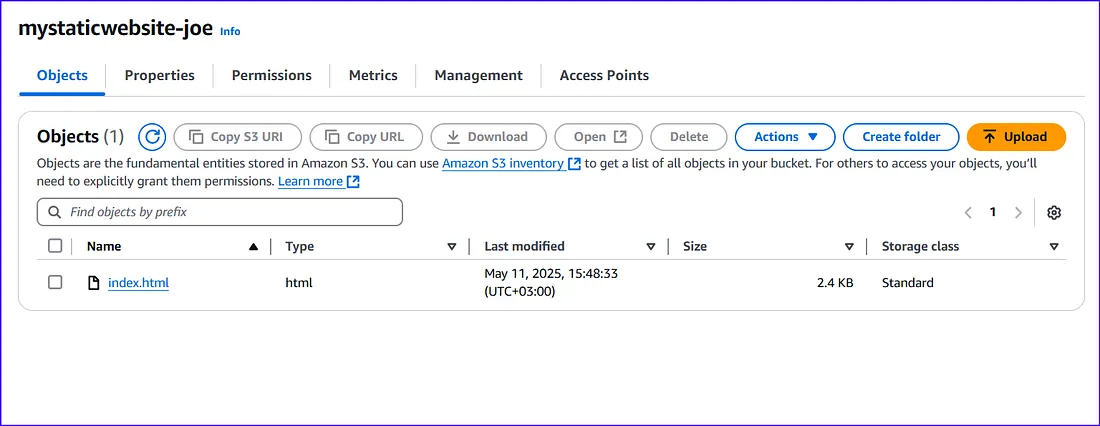
🎉 Your site is now live on the internet!
Thanks for reading! Got questions or feedback? Drop them below 👇